Projects and tasks
Projects group the work you do for a customer or for yourselves: tasks on a board, milestones, a budget and the hours logged against it. Every task across every project also lives on one company-wide task board, and clients can follow their own projects from the client portal.
Projects, tasks and timesheets read the ERPNext engine when it is connected and fall back to demo data when it is not. Changing a task's status, adding a task and opening a task's detail page all need the live engine.
Projects list
Open Run then Projects, or go to /projects. The page is titled Projects with the subtitle "Boards, tasks, timesheets, milestones and budgets". Two buttons: Task board opens /tasks and New project opens the creation form.
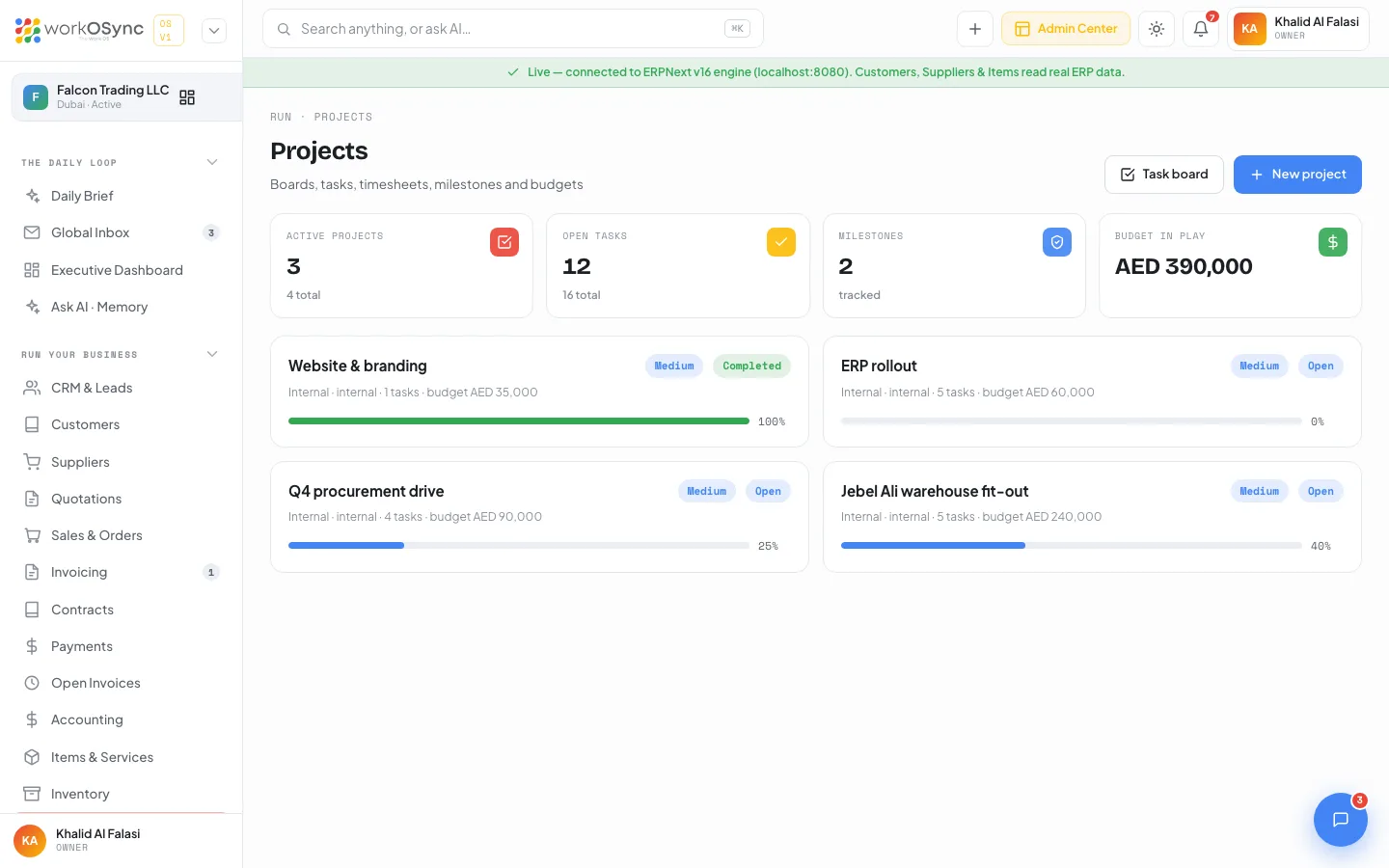
KPI tiles
- Active projects, with the total count beneath.
- Open tasks across all projects.
- Milestones tracked.
- Budget in play: the sum of active project budgets in AED.
Project cards
Cards sit in two columns and link to the project hub. Each shows the name, a priority badge, a status badge, a meta line of type, customer (or "internal"), task count and budget, and a progress bar. In the demo, PROJ-011 "Jebel Ali warehouse fit-out" is 62% complete on a AED 240,000 budget; PROJ-009 "Q4 procurement drive" and PROJ-007 "ERP rollout" are active and PROJ-004 "Website & branding" is Completed.
| Priority | Badge colour |
|---|---|
| Urgent | Red |
| High | Amber |
| Medium | Blue |
| Low | Grey |
Creating a project
/projects/new is titled New project: create the project, then add tasks, milestones and timesheets.
| Field | Default | Notes |
|---|---|---|
| Project name | Empty | Required. Placeholder "e.g. Jebel Ali warehouse fit-out". Missing: "Project needs a name." |
| Type | Internal | Internal or External. |
| Priority | Medium | Low, Medium, High or Urgent. |
| Expected end | 2026-12-31 | Shown as the due date on the hub. |
| Budget (AED) | Empty | Feeds the Budget and Spent KPIs. |
| Customer (optional) | Internal project | Pick a customer to make it visible in that customer's portal. |
Create project saves and opens the new project hub.
Project hub
/projects/[name] is titled with the project name and its status; the subtitle shows the id, type, customer (or internal) and due date. New project sits in the header and All projects returns to the list.
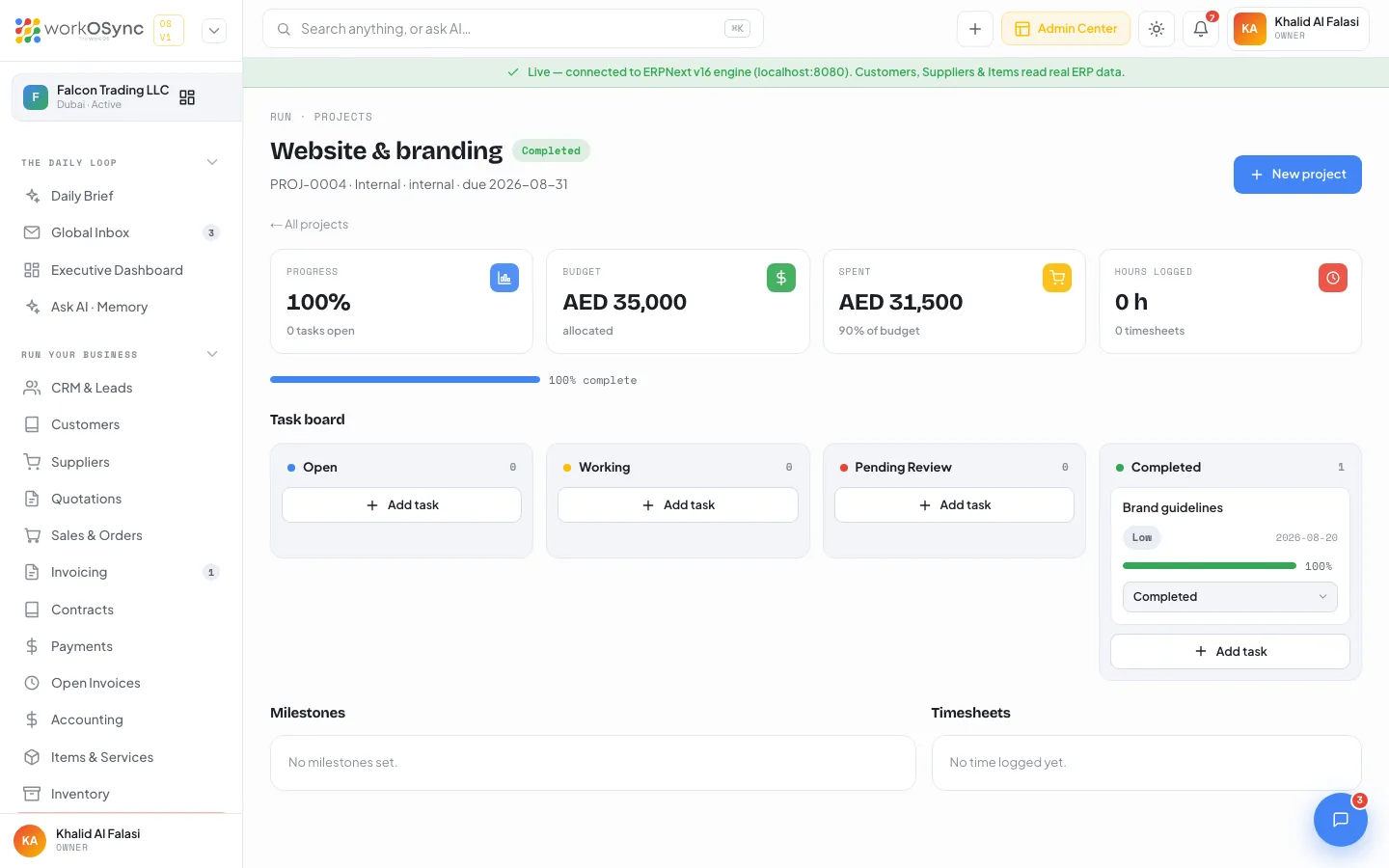
- Progress, with the number of open tasks.
- Budget allocated.
- Spent, as a percentage of budget.
- Hours logged, with the number of timesheets.
A "{n}% complete" bar follows. The Task board section is the same board as /tasks but scoped to this project, and tasks you add here attach to it. The Milestones list links each milestone to its task with a due date and status (empty: "No milestones set."). The Timesheets table shows Employee, Date, Hours and Status (empty: "No time logged yet.").
Task board
/tasks, crumb "Run · Projects · Board", shows every task across every project in four columns with counts: Open (blue), Working (yellow), Pending Review (red) and Completed (green). Cancelled tasks are hidden.
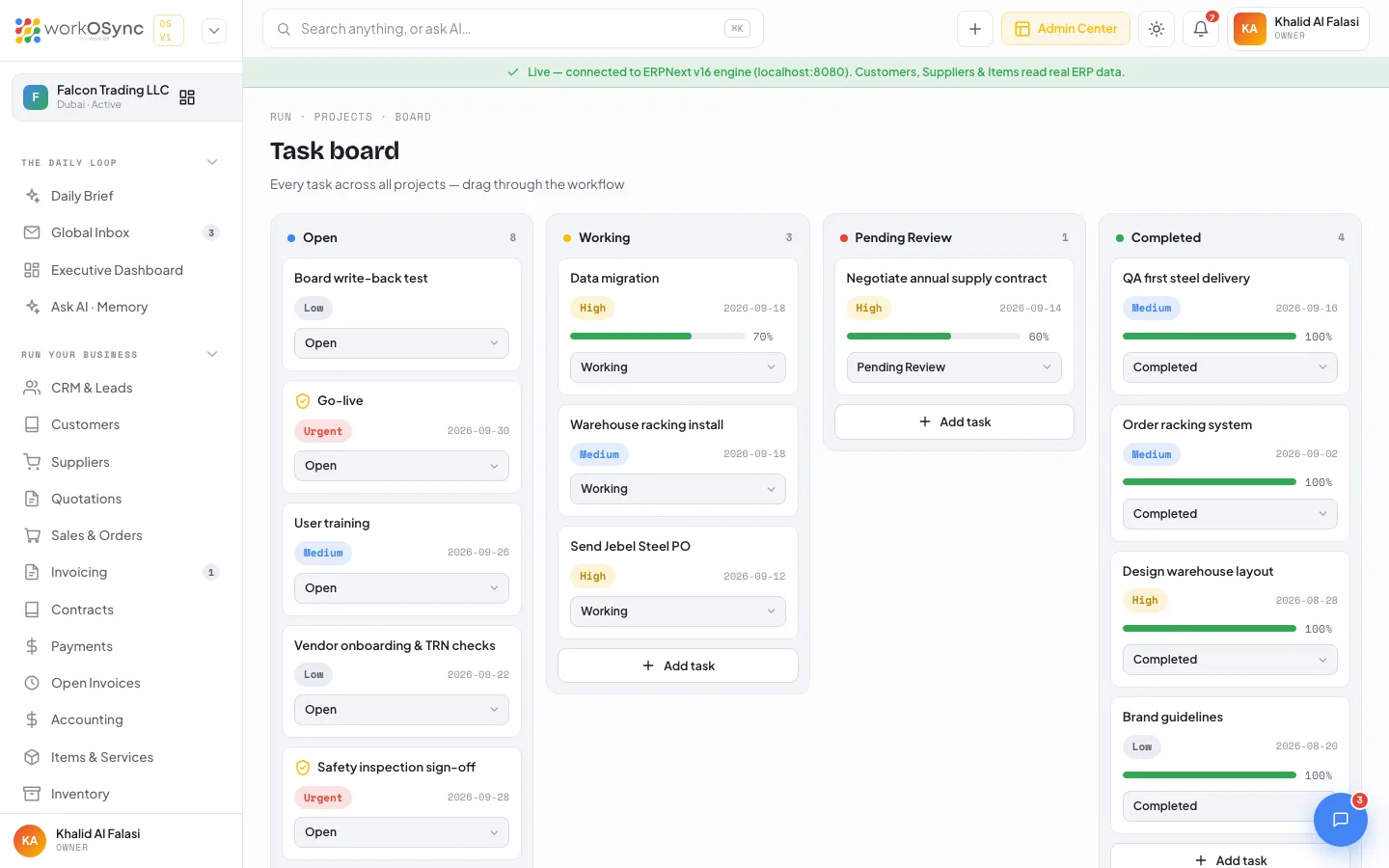
Each card shows a milestone shield when the task is a milestone, the subject (linked to task detail), a priority badge, a due tag, a progress bar and a status dropdown.
The subtitle mentions dragging, but cards do not drag in this build. Change the status dropdown on the card and it moves to the matching column.
How to add and move a task
- Click Add task in a column
A "Task subject" input appears with Add and Cancel. Press Enter or click Add.
- The task takes the column's status
A task added under Working starts as Working. New tasks get Medium priority. On a project hub the task also attaches to that project.
- Move it with the status dropdown
Pick Open, Working, Pending Review or Completed on the card. The card jumps to that column and the counts update.
Task detail
/task/[name], crumb "Projects · Task" (with " · Milestone" appended for a milestone), is titled with the subject; the subtitle shows the task id and project. Open project jumps to the hub and Task board returns to the board. KPIs: Status, Priority, Progress and Due with the estimated hours.
The left column holds Description ("No description." when empty) and Comments with avatar, author, text and time ("No comments yet."). The right-hand Details card has Change status (Open, Working, Pending Review, Completed, Cancelled), the priority, a Timeline from start to end, Estimated hours, the Assignee ("Unassigned") and the milestone row. Task detail requires the live engine.
Timesheets
/timesheets is time logged against projects, for costing and billing. Header controls: an Export menu (the table as timesheets) and New timesheet. KPIs: Timesheets this month, Hours logged, Billable hours (to invoice) and Utilization, the billable ratio. The table has Timesheet, Employee (with avatar), Project (or "Internal"), Date, Hours, Billable and Status, where Submitted is green and any other status such as Draft is grey. When nothing is logged the table reads "No timesheets yet. Log the first one."
Logging time
| Field | Default | Notes |
|---|---|---|
| Employee | The first employee | Required ("Choose an employee."). |
| Project | Internal (no project) | Any project from the list. |
| Date | Today | |
| Hours | 8 | Half-hour steps; must be greater than zero. |
| Activity | Execution | Execution, Planning, Meeting, Support, Travel. |
| Billing | Billable to the customer, ticked | Untick for internal time; it then counts in Hours but not in Billable. |
Log time submits an ERPNext Timesheet with the live engine. In demo mode the row is kept in this workspace with a TS- id, the status Submitted and a New badge. Hours logged also appear on each employee's profile in HR and payroll.
Client portal
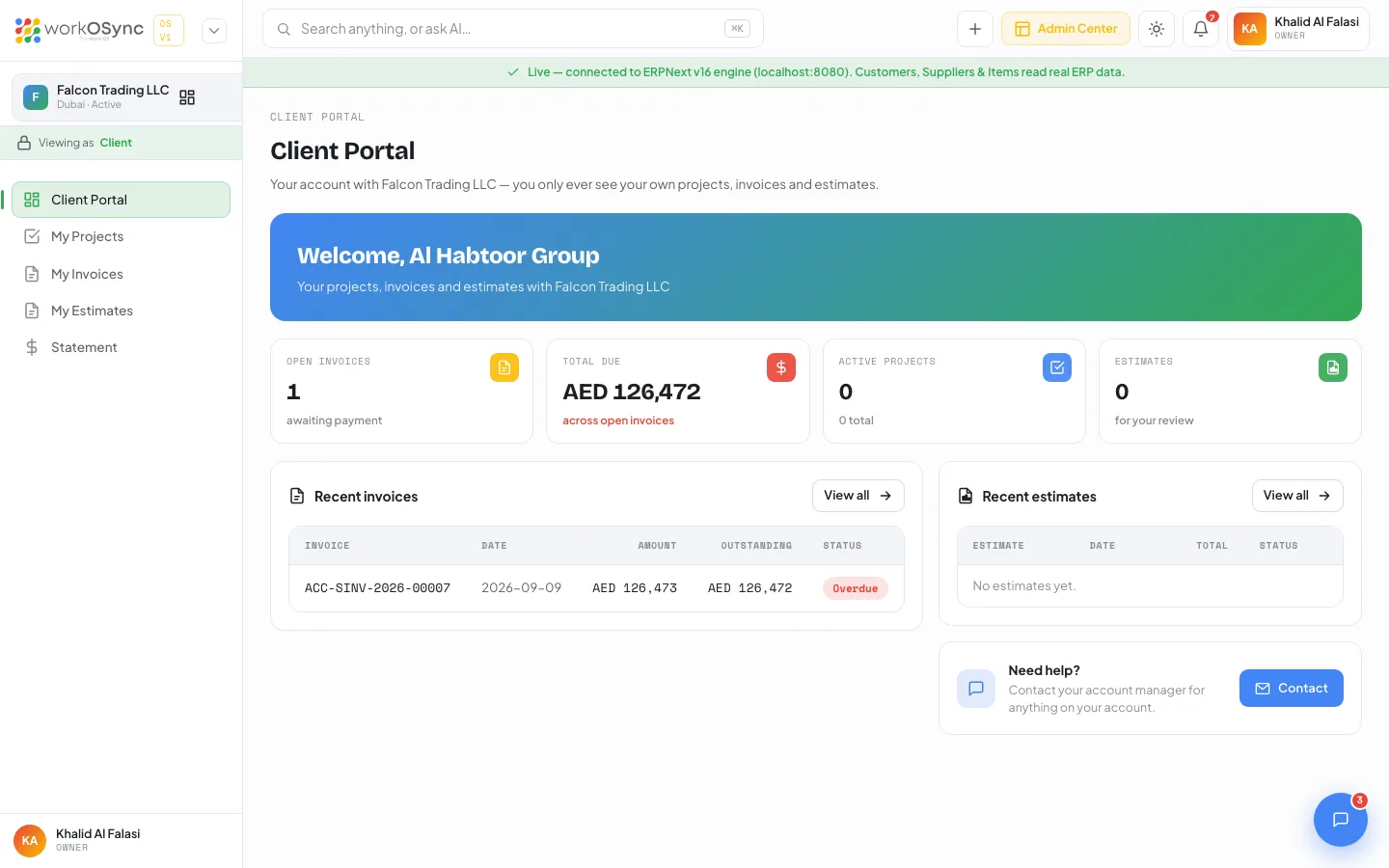
A user with the Client role never sees the internal app. Their sidebar shows only Client Portal, My Projects, My Invoices, My Estimates and Statement, and any other URL redirects to /portal. The demo client is Al Habtoor Group, served by Falcon Trading LLC. See Roles and permissions for how the role is assigned.
Home
/portal is titled Client Portal: your account with Falcon Trading LLC, where you only ever see your own projects, invoices and estimates. KPIs: Open invoices (awaiting payment), Total due, Active projects and Estimates (for your review). Below are Recent invoices (Invoice, Date, Amount, Outstanding, Status, with View all), Recent estimates (Estimate, Date, Total, Status) and a Need help? card with a Contact mail link to the account manager.
My projects
/portal/projects shows Active projects, Average progress and Total budget, then a table of Project, Status, Progress and Budget (empty: "No projects yet"). Only projects with this customer set appear.
My invoices
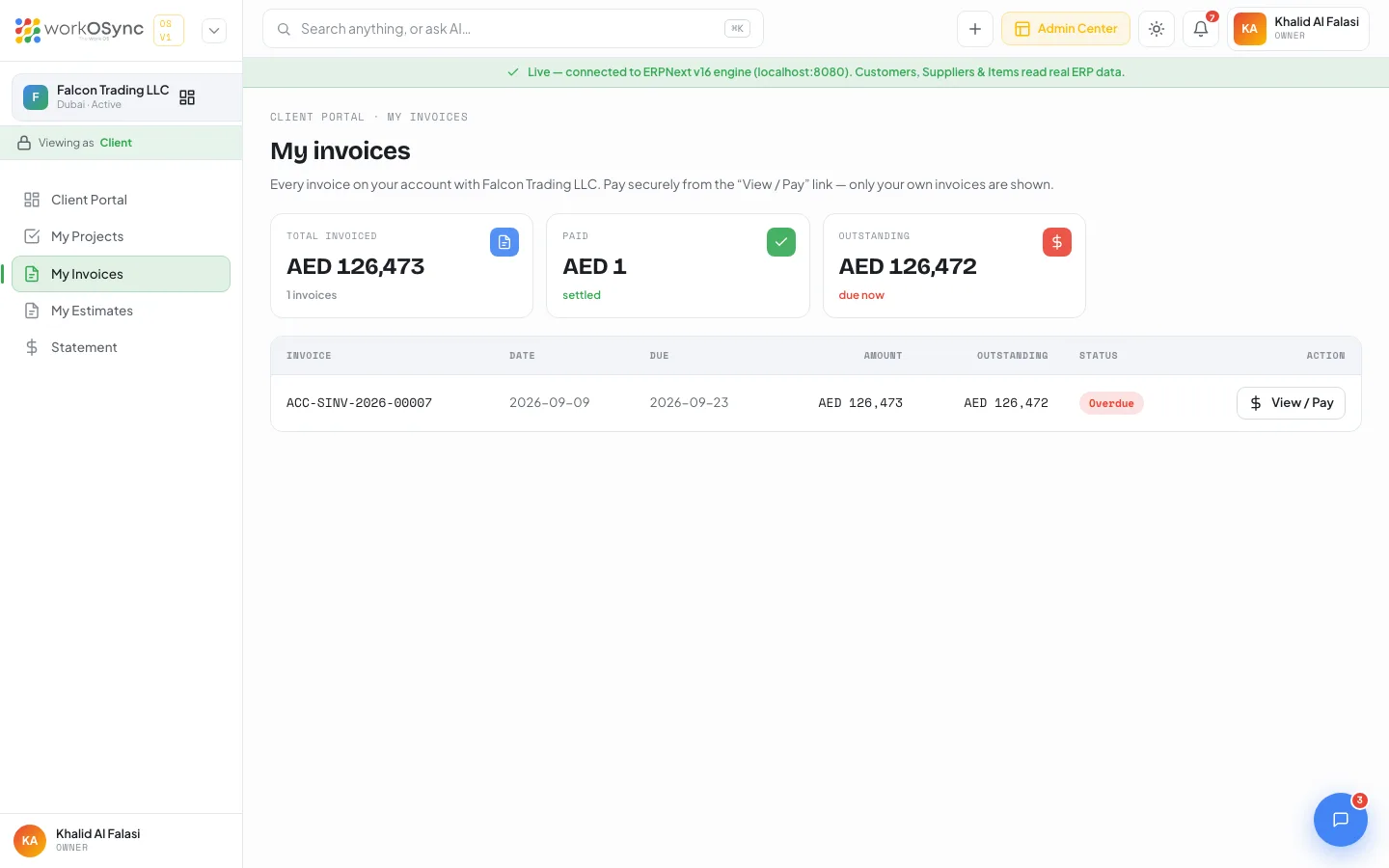
/portal/invoices shows Total invoiced, Paid (settled) and Outstanding ("due now" or "all clear"). The table has Invoice, Date, Due, Amount, Outstanding, Status and an Action column: View / Pay for open invoices or View for paid ones, opening /pay/{invoice} in a new tab. See Payments for what the client can do there.
My estimates
/portal/estimates shows Estimates, Awaiting review (ready to sign) and Total value, then Estimate, Date, Valid till, Total, Status and a Review & sign action that opens the public quotation page. See Quotations.
Statement of account
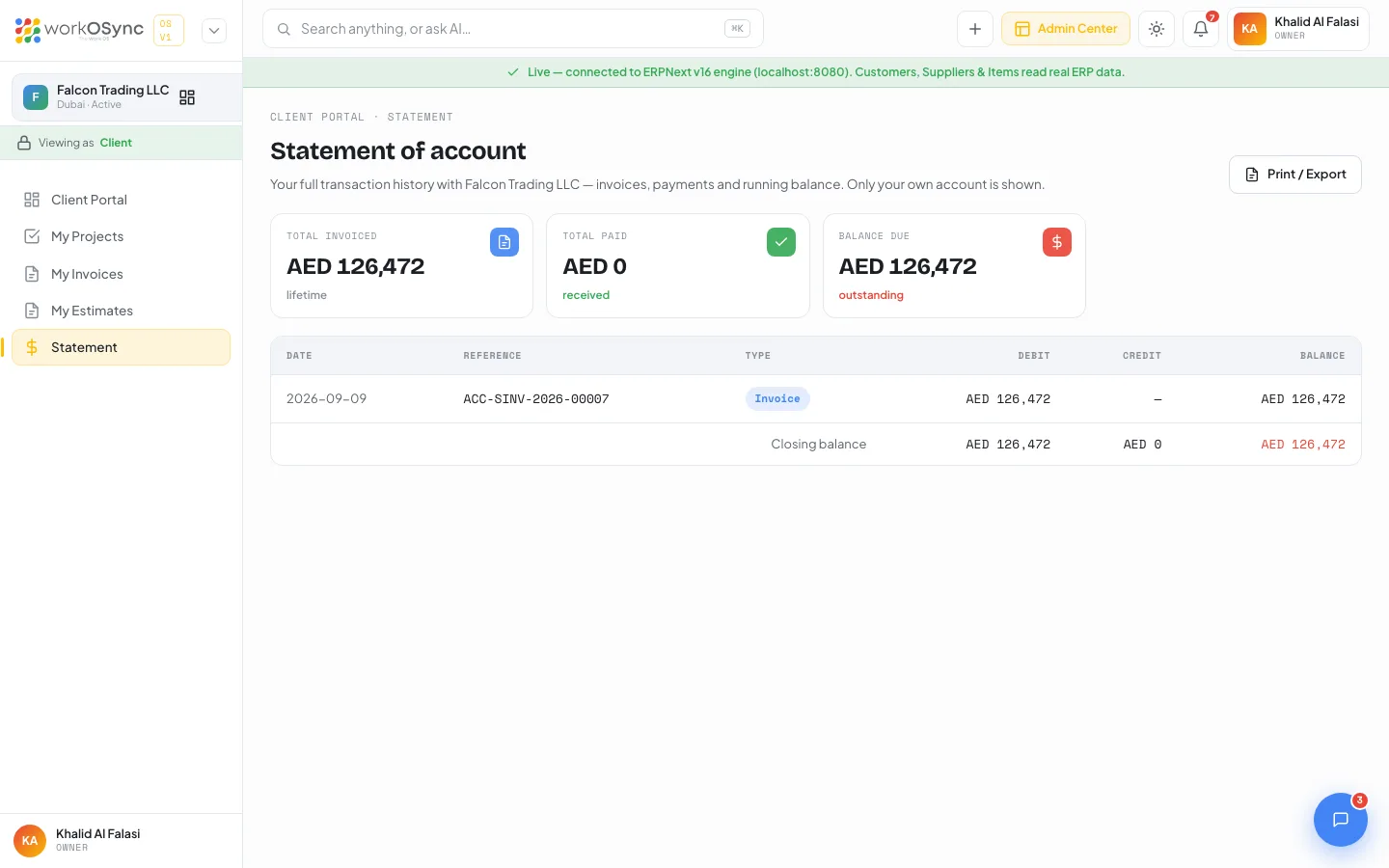
/portal/statement has a Print / Export button that opens the browser print dialog. KPIs: Total invoiced (lifetime), Total paid and Balance due ("outstanding" or "settled"). The table lists Date, Reference, Type (Payment in green, Invoice in blue), Debit, Credit and Balance, ending in a Closing balance row.