Navigating the app
Every WorkOSync screen shares one shell: a sidebar on the left that lists your modules, a top bar with search, quick create, notifications and your account, and a floating team chat in the corner. This page walks through each part so you always know where you are and how to get somewhere faster.
The sidebar
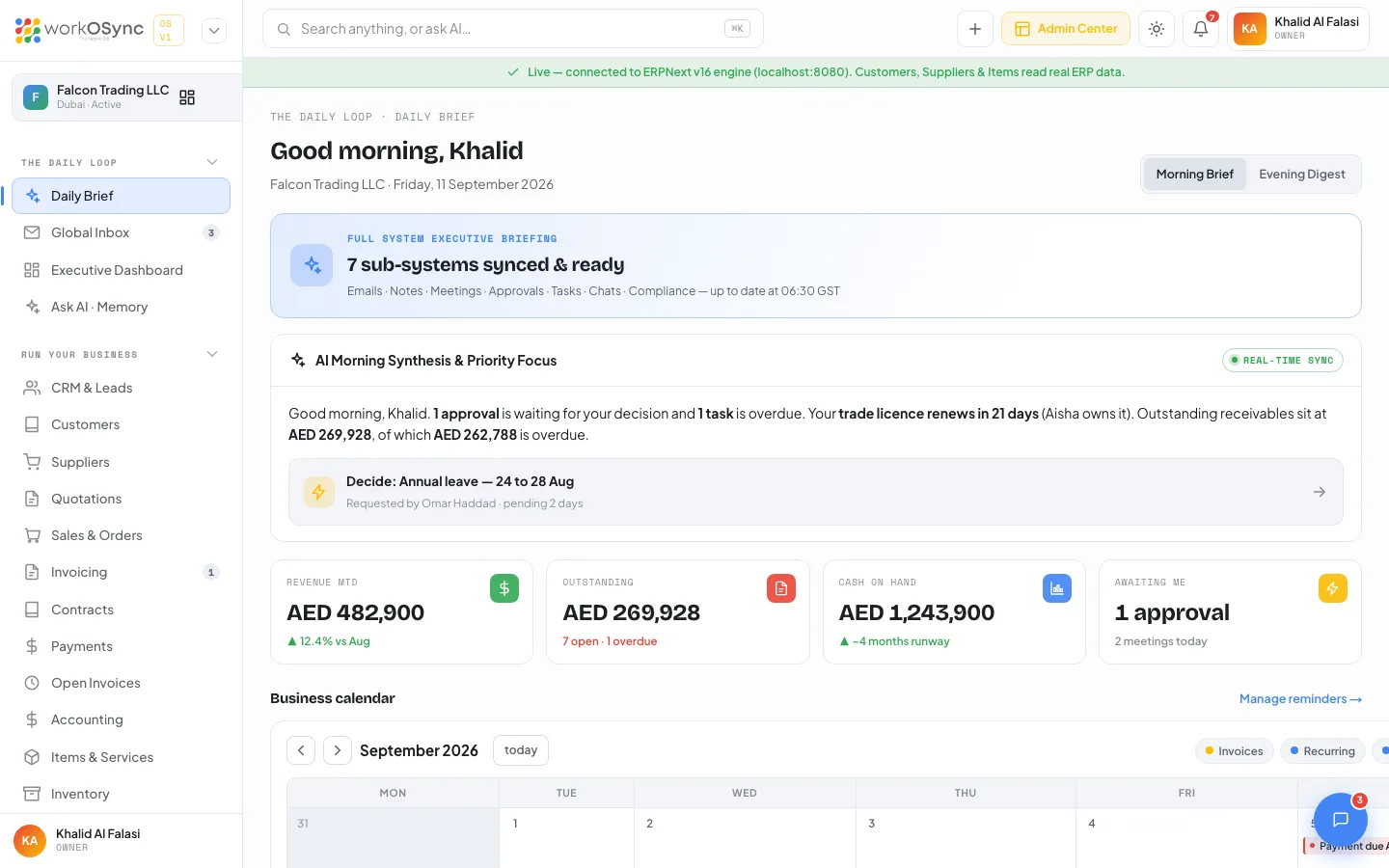
The sidebar is grouped into five sections that mirror how a day at work unfolds. Each group header collapses on click, and WorkOSync remembers which groups you folded away. The group that contains the page you are on never collapses, so the active item is always visible.
| Group | Modules |
|---|---|
| The Daily Loop | Daily Brief, Global Inbox, Executive Dashboard, Ask AI · Memory |
| Run your business | CRM & Leads, Customers, Suppliers, Quotations, Sales & Orders, Invoicing, Contracts, Payments, Open Invoices, Accounting, Items & Services, Inventory, Projects, Task Board, Timesheets, HR & Payroll, Manufacturing, Assets |
| AI Work OS | Chat & Groups, Meetings & AI Notes, One-Tap Approvals, UAE Compliance |
| Team & tools | Notes, Reminders, Password Vault |
| System | Reports, Users & Access, Audit Logs, Settings |
Some items carry a count badge: Global Inbox shows unread threads, Invoicing shows invoices needing attention, One-Tap Approvals shows decisions waiting on you and UAE Compliance shows tracked deadlines.
Collapsed icon rail
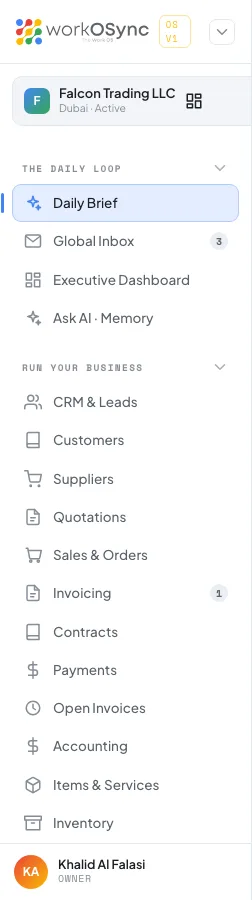
Click the chevron next to the logo (Hide menu) to shrink the sidebar to an icon rail. Hover any icon to see its label, and click the chevron again (Show menu) to restore the labels. The choice is remembered on this device.

Company switcher
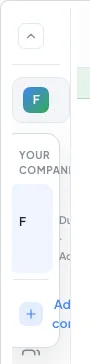
The card at the top of the sidebar shows the active company with its city and status. Click it to open Your companies, switch between the companies in your group, or choose Add new company and type a workspace name to create another one. A new company starts with the subtitle New workspace · Setup until you complete its profile in Settings.
The top bar

Search and command palette
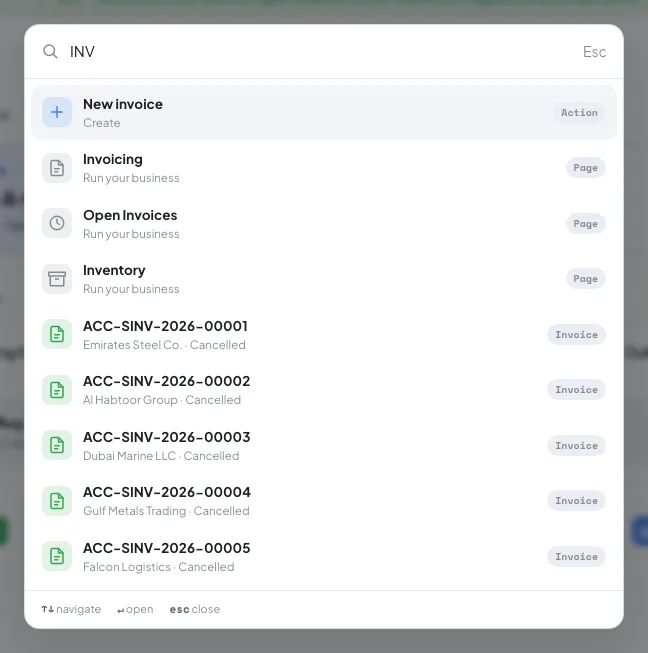
The search box in the top bar is also a command palette. Press ⌘K on a Mac or Ctrl+K on Windows to open it from anywhere, and Esc to close it.
- With an empty box you see the first six pages of the sidebar.
- From the first character it matches seven quick actions (New invoice, New estimate / quotation, New customer, New lead, New contract, Record payment, Journal entry) and every page by name or group.
- From two characters it also searches your records: customers, sales invoices, contracts, quotations, suppliers, items, leads and employees, up to five of each, each tagged with its type.
- If nothing matches, the last row offers Ask AI so the question goes to company memory instead.
Use ↑ and ↓ to move through results and ↵ to open the highlighted one.
Quick create
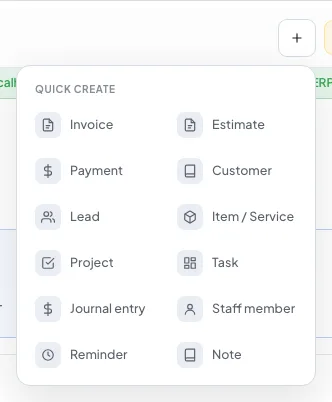
The + button opens a grid of twelve shortcuts so you can start a record without first opening its module: Invoice, Estimate, Payment, Customer, Lead, Item / Service, Project, Task, Journal entry, Staff member, Reminder and Note.
Notifications
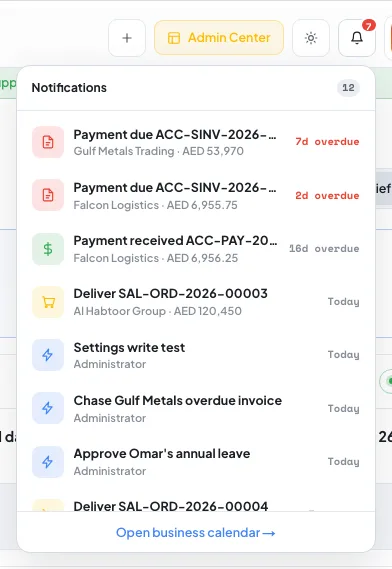
The bell collects everything from your business calendar that is due within the next ten days and not yet paid or done: invoices, quotations, deliveries, payments, reminders and recurring invoice cycles. Overdue items sort first and the red dot counts what is overdue or due today. Each row shows a relative day such as Today, Tomorrow, in 4d or 3d overdue, and Open business calendar takes you to the calendar on the Daily Brief.
Theme
The sun icon switches between the dark and light themes. WorkOSync starts in dark mode and remembers your choice on this device. The screenshots in this documentation use the light theme.
Your account and the role switcher
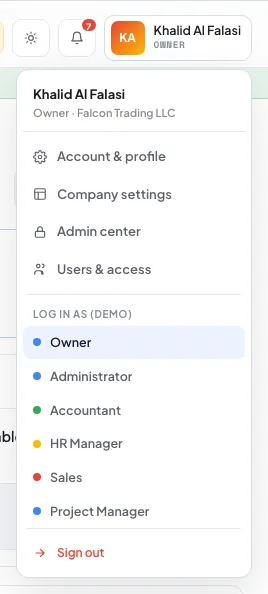
Click your name to open the account menu. It links to Account & settings, Company profile, Users & access and, for platform operators, the Admin center. The Log in as (demo) section lets you preview the workspace as any of the eight roles so you can check what a colleague will see before you invite them. Choosing Client opens the client portal; every other role returns to the Daily Brief with a Viewing as banner in the sidebar. Sign out ends your session.

Floating team chat
The round button in the bottom-right corner opens a compact chat panel on any page. The Messages tab lists your direct conversations and channels with unread counts; the Team members tab shows colleagues with their role and whether they are online. Open a thread, type in Type a message… and press ↵ to send. The full chat experience lives in Chat and groups.
Page anatomy
Module pages follow one layout so you can read any of them the same way:
- A breadcrumb such as Run · Invoicing and the page title with a one-line description.
- Header buttons for the primary action (for example New invoice) and an Export menu where the page is a list.
- A row of KPI tiles that summarise the module, each with a small trend line.
- The main table or board, with linked IDs that open the record.
- A status banner at the very top tells you whether the page is reading live ERPNext data or demo data.
⌘K then type inv and press ↵ opens a new invoice in three keystrokes. Esc closes any menu, palette or modal.
Mobile
On a phone the sidebar becomes a drawer opened by the menu button at the left of the top bar. Everything else, including search, quick create and the floating chat, works the same way.
- Find anything
Press ⌘K, type a customer, invoice number or page name, and press ↵.
- Create anything
Click + in the top bar and pick the record type.
- Check what needs you
Open the bell for due and overdue items, or read the Daily Brief for the full picture.