Notes and reminders
Notes hold the team's shared knowledge: SOPs, meeting notes and checklists. Reminders hold the small commitments with a date and a priority. Both live under Team & tools in the sidebar, both are stored in the ERPNext engine when it is connected, and reminders surface in the notifications bell and on the Daily Brief calendar so they are not forgotten.
Notes
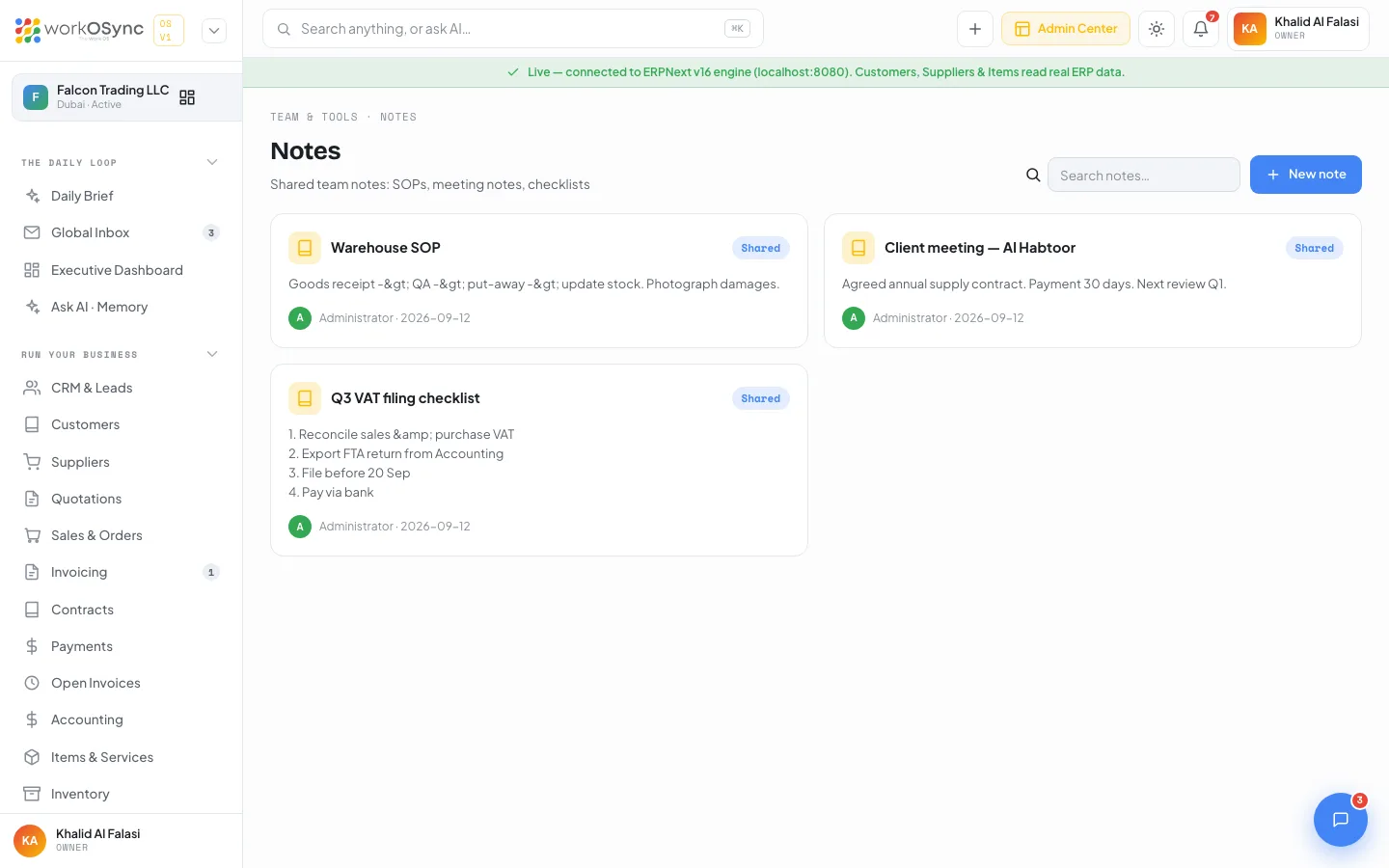
The page title is Notes, subtitle "Shared team notes: SOPs, meeting notes, checklists". The header holds a Search notes… box that filters cards by title and content as you type, and a New note button.
Note cards
- Title with a notebook icon.
- Shared (blue) or Private (grey) badge: shared notes are visible to the whole team, private notes only to their owner.
- Content: line breaks are preserved, so a numbered checklist reads as written.
- Owner avatar, name and date of the last change.
- An X to delete appears only on notes you created in this browser.
The demo workspace opens with three shared notes: a Q3 VAT filing checklist (Khalid Al Falasi), the Al Habtoor client meeting note (Rania Aziz) and a warehouse SOP (Aisha Rahman). With no notes the page reads "No notes yet. Create the first one."; a search with no matches reads "No notes match your search."
Create a note
- Click New note
A modal titled New note opens.
- Title (required)
For example "Month-end close checklist". Saving without a title shows "Give the note a title."
- Content
A multi-line field. One step per line works well for checklists.
- Share with the whole team
Ticked by default. Untick it to keep the note private.
- Save note
A confirmation reads "Note "{title}" saved." and the card appears first in the grid.
Notes read from and write to the ERPNext Note doctype when the engine is connected (Live mode in the banner). In demo mode the modal notes "Demo mode: notes are kept in this workspace" and new notes are held in this browser until the engine is connected.
Reminders
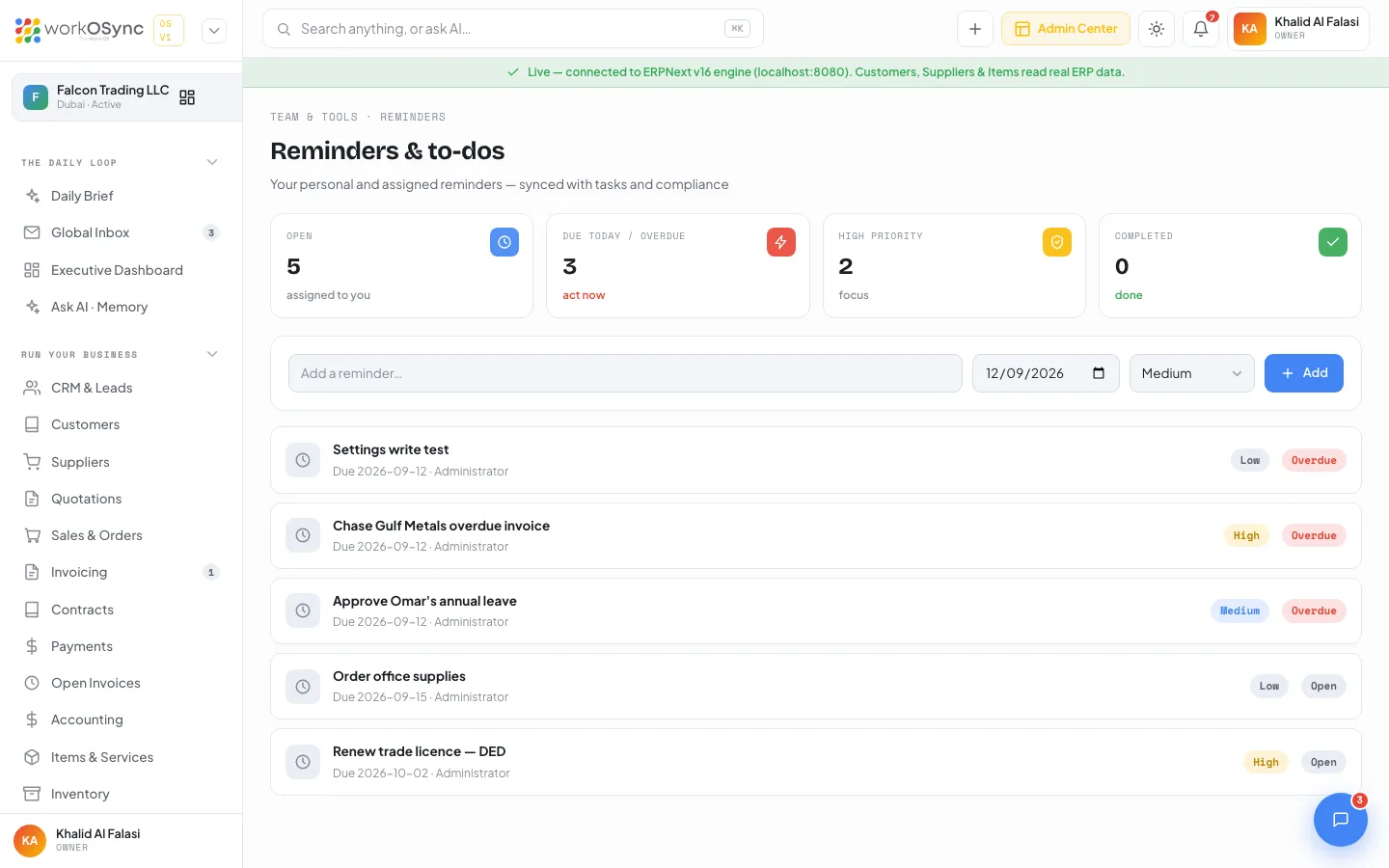
The page title is Reminders & to-dos, subtitle "Your personal and assigned reminders - synced with tasks and compliance". It is also the target of the Manage reminders → link on the Daily Brief calendar and the Reminder tile in the quick-create menu.
KPIs
| Tile | Counts |
|---|---|
| Open | Reminders not yet done. |
| Due today / overdue | Open reminders whose date is today or earlier. Labelled "act now". |
| High priority | Open reminders with priority High or Urgent. |
| Completed | Reminders marked done. |
Add a reminder
The add row sits above the list.
- Describe it
Type in Add a reminder…. Pressing Enter here adds the reminder straight away. A blank description is ignored.
- Pick the date
The date field defaults to today (2026-09-12 in the demo workspace).
- Choose a priority
Low, Medium (default), High or Urgent.
- Click Add
The button is disabled while saving. The list refreshes with the new row; if the engine rejects the save, the error is shown above the add row.
Reminder rows
- Round toggle on the left: a clock while open, a green tick once done. Its tooltip reads Mark done or Reopen. Clicking it flips the status.
- Description, struck through and faded when done, with Due {date} · {owner} beneath.
- Priority badge: Urgent (red), High (amber), Medium (blue), Low (grey). The row's accent colour follows the priority.
- Status badge: Done (green), Overdue (red, open and dated today or earlier), or Open (grey).
The demo workspace seeds five reminders: renew the trade licence (High, Aisha Rahman), chase the Gulf Metals overdue invoice (High), approve Omar's annual leave (Medium), order office supplies (Low, Yusuf Khan) and send the Q3 board deck (Medium, already closed). An empty list reads "No reminders yet - add one above."
Reminders are ERPNext ToDo records: adding one creates a ToDo with the description, date and priority, and the toggle sets it to Closed or back to Open. In demo mode the page shows "Demo mode - connect the engine to save reminders." and the seeded rows are read-only samples.
Reminders in the notifications bell
The bell in the topbar is built from the business calendar: invoices, quotations, deliveries, payments, recurring invoices and reminders. It lists items that are not Paid or Done and are due within 10 days, overdue first, up to 12 rows. A red dot shows the number that are overdue or due today.
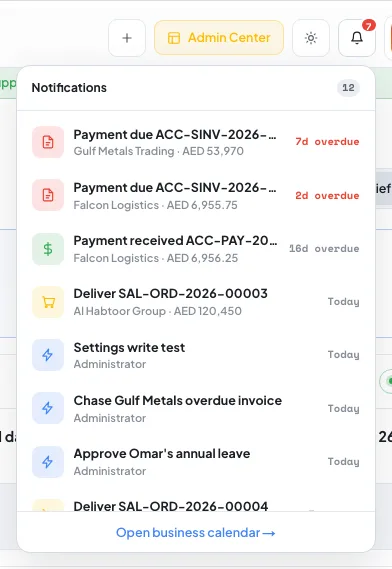
- The header reads Notifications with the count.
- Each row shows an icon, the title, a subtitle (with · AED {amount} for money items) and a relative day: Nd overdue, Today, Tomorrow or in Nd.
- With nothing due the panel reads "You're all caught up - nothing due soon."
- The footer link Open business calendar → goes to the Daily Brief.
Reminders on the business calendar
The Daily Brief carries a Business calendar: a Monday-first month grid with previous, next and today controls. Legend chips toggle Invoices, Recurring, Estimates, Deliveries, Payments and Reminders. Each day cell shows up to three events and then +N more; clicking an event opens its record, so a reminder opens this page. The side panel lists the selected day's events, or Upcoming (the next nine) when no day is selected, with badges: Overdue red, Paid or Done green, anything else amber. The panel header links to Manage reminders →.
Use a reminder for a personal, dated nudge (chase an invoice, renew a card). Use a task on the task board when work has an assignee, a status and a project. Compliance deadlines belong in the compliance tracker, which is what the seeded "Renew trade licence" reminder points at.