Global Inbox
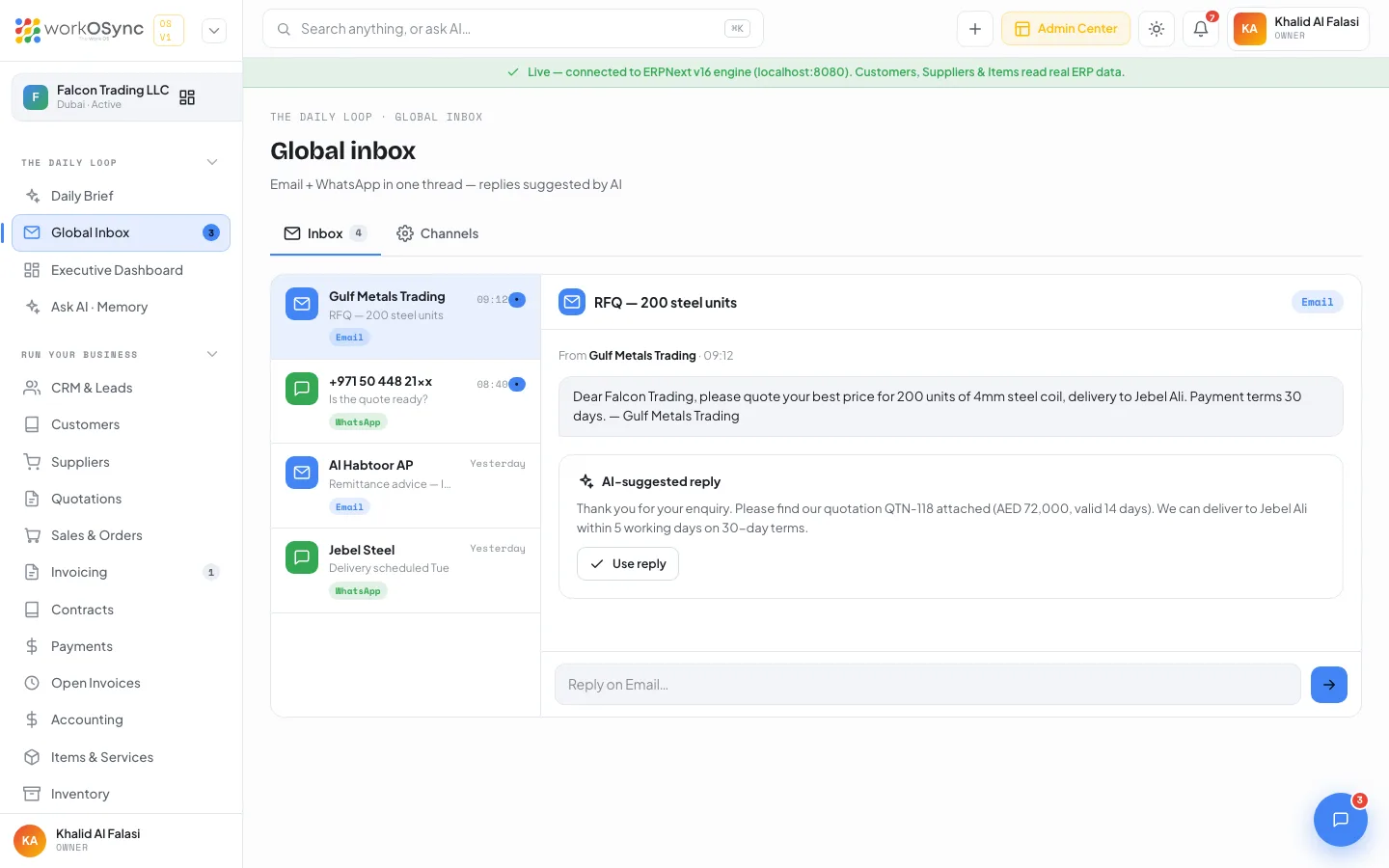
The Global Inbox is one thread list for customer email and WhatsApp. Every conversation opens in the same pane, an AI-suggested reply is ready for each one, and the Channels tab is where mailboxes and WhatsApp numbers are connected.
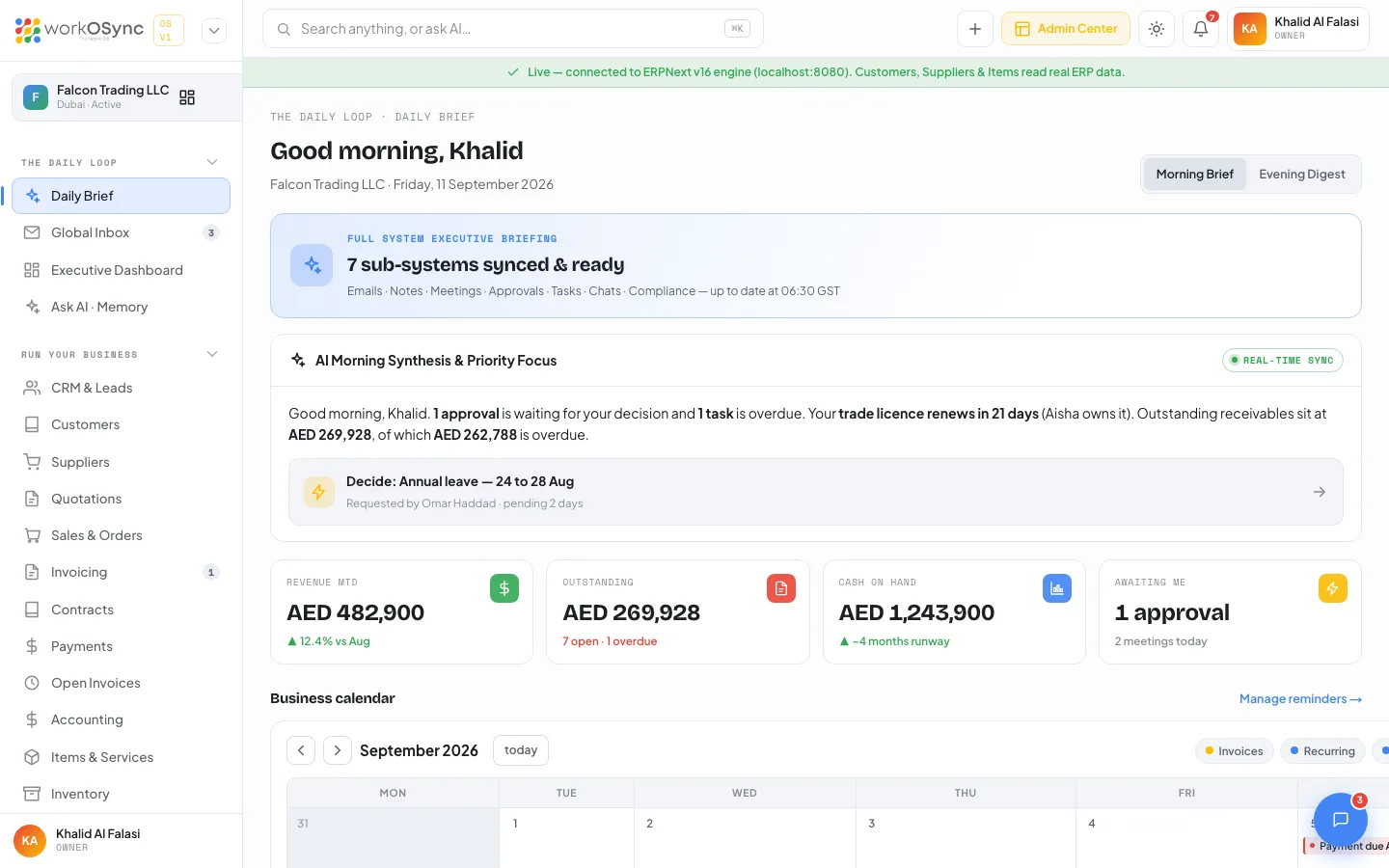
Open it from The Daily Loop · Global Inbox in the sidebar (the badge shows unread threads) or from the Unread row in the Daily Brief's "Today across your business" list. The page title is Global inbox, subtitle "Email + WhatsApp in one thread - replies suggested by AI".
Tabs
- Inbox with a count of threads (4 in the demo workspace). This is the reading and replying view.
- Channels: connection settings for email and WhatsApp.
The thread list
Each row in the left column shows:
| Element | Meaning |
|---|---|
| Icon | Envelope for email (blue), chat bubble for WhatsApp (green). |
| Sender | The company or contact name for email, the phone number for WhatsApp. |
| Subject | The subject line, or the first message for WhatsApp. |
| Channel badge | Email or WhatsApp. |
| Time | Clock time for today, otherwise "Yesterday". |
| Unread dot | Shown on unread threads until you send a reply from this browser. |
The demo workspace ships with four threads so you can try the flow straight away:
- Gulf Metals Trading, email, "RFQ - 200 steel units" (unread).
- +971 50 448 21xx, WhatsApp, "Is the quote ready?" (unread).
- Al Habtoor AP, email, "Remittance advice - INV-2049".
- Jebel Steel, WhatsApp, "Delivery scheduled Tue" (replied).
The thread pane
The pane header repeats the subject with the channel icon and badge. Below it the thread shows From {sender} · {time}, the incoming message as a bubble, and any replies you have sent as bubbles on your side stamped You · HH:MM.
AI-suggested reply
Under the messages sits a card titled AI-suggested reply with a drafted answer that fits the thread: a quotation reference and validity for the RFQ, a confirmation that a remittance was matched to its invoice, a delivery acknowledgement, and so on. Click Use reply to drop the draft into the composer, where you can edit it before sending.
Composer
The composer placeholder reads Reply on Email… or Reply on WhatsApp… depending on the thread. Press Enter or click the arrow to send. The sent reply appears in the thread immediately and clears the unread dot for that row.
Replies you send are stored in this browser so the thread reads naturally while you evaluate the product. Outbound delivery through your real mailbox or WhatsApp number arrives with the channel connections below.
Channels tab
The Channels tab has two cards. Each connection shows a Connected or Not set badge.
Email card
| Connection | Type | Controls |
|---|---|---|
| Gmail / Google Workspace | OAuth, read and send | Connect / Disconnect |
| Outlook / Microsoft 365 | OAuth, read and send | Connect / Disconnect |
| Custom IMAP / SMTP | Any provider | Connect opens the settings form; Manage once saved |
The custom IMAP / SMTP form has these fields:
- IMAP host (for example
imap.yourdomain.com) and IMAP port (typically993). - SMTP host (for example
smtp.yourdomain.com) and SMTP port (typically587). - Email address: the mailbox that receives and sends.
- Password: a password field; once saved it is shown masked under the field.
- Save settings and, once connected, Disconnect.
WhatsApp card
The WhatsApp Business API (Cloud API) connection takes a Business phone number(for example +971 50 000 0000) and a WhatsApp Business API token. Connect numberis enabled once a phone number is entered. When connected, the card shows the number, the token masked, and a Disconnect button. A note under the card reminds you that connected channels feed the unified inbox above.
Connect and Disconnect on Gmail and Outlook change the badge only; no OAuth screen opens and no mailbox is contacted. IMAP and WhatsApp details are kept in this browser and shown masked. In production these credentials are encrypted server-side and never kept in the browser. Do not enter a live production token while evaluating; use a sandbox number and token.
How to connect a channel
Gmail / Google Workspace or Outlook / Microsoft 365
- Open Channels
On the Global Inbox click the Channels tab.
- Click Connect on the provider
The badge changes from Not set to Connected. The production release opens the provider's OAuth consent screen at this step.
- Return to Inbox
Switch back to the Inbox tab. Mail from a connected mailbox lands in the same list as WhatsApp.
Custom IMAP / SMTP
- Click Connect on Custom IMAP / SMTP
The settings form expands under the row.
- Enter the server details
Fill IMAP host and port, SMTP host and port, the email address and its password. Use the app password your mail provider issues for third-party clients where one is required.
- Save settings
The row shows the email address and a Connected badge. Use Manage to edit and Disconnect to remove the details.
WhatsApp Business API
- Enter the business phone number
Use the international format with the country code.
- Paste the API token
The field is a password field and the saved token is displayed masked.
- Connect number
The card shows the number and a Connected badge. Chats from that number appear in the thread list beside email.
Where the inbox shows up elsewhere
- The sidebar item Global Inbox carries an unread badge.
- The Daily Brief's morning synthesis and its "Today across your business" list link to the inbox with an Unread badge.
- Conversations with customers sit next to their records: see Customers and Quotations for the documents the suggested replies refer to.