Invoicing
Invoicing produces FTA-compliant tax invoices, tracks what is outstanding and overdue, and gives every invoice a secure public pay link. Invoices post to Sales, VAT and the customer's Debtors account the moment you save them, so the ledger, Accounting reports and the customer statement always agree.
The invoicing workspace
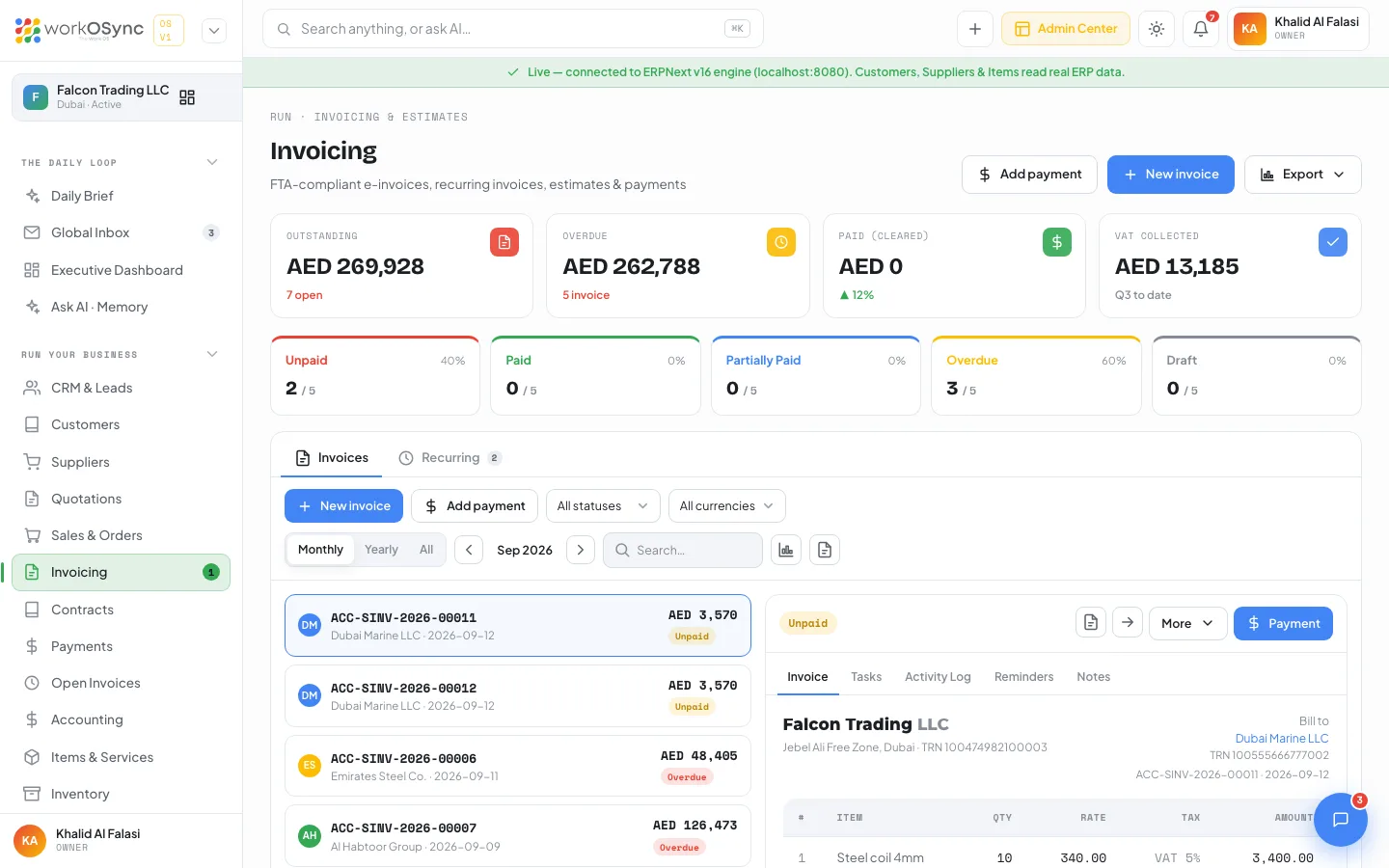
Open Invoicing from the sidebar (/invoicing). The breadcrumb reads Run · Invoicing & Estimates, the title is Invoicing and the subtitle FTA-compliant e-invoices, recurring invoices, estimates & payments. Header buttons: Add payment (opens the record-payment form), New invoice and Export (columns Invoice, Customer, Date, Due, Amount, Outstanding, Status).
KPI tiles
| Tile | What it shows |
|---|---|
| Outstanding | Total still to collect, with {n} open. |
| Overdue | Outstanding past its due date, with the number of invoices. |
| Paid (cleared) | The total of invoices with status Paid (the ▲ 12% caption is a fixed sample). |
| VAT collected | Estimated as grand total × 5/105 across non-draft invoices, labelled Q3 to date. |
Status cards and filters
Five cards, Unpaid, Paid, Partially Paid, Overdue and Draft, each show {n} / {total} and a percentage. Click a card to filter the list to that status; click it again to clear.
| Status | Meaning |
|---|---|
| Draft | Saved but not posted (for example a duplicate you have not submitted). |
| Unpaid | Posted, nothing received yet, not past due. |
| Partially Paid | Some payment received; a balance remains. |
| Overdue | Unpaid or partially paid and past the due date. |
| Paid | Fully settled. |
| Cancelled | Voided through Mark as Cancelled. |
Tabs and toolbar
Two tabs, Invoices and Recurring (with a count badge), sit above the toolbar:
- New invoice and Add payment shortcuts.
- Status dropdown: All statuses, Unpaid, Paid, Overdue, Partially paid, Draft.
- Currency dropdown (All currencies, AED, USD, EUR) that filters by the invoice currency.
- Monthly / Yearly / All period switch (default Monthly, the current month) with previous and next arrows.
- Search… matches the invoice ID and the customer name.
- An Export to Excel icon (
invoices.csvwith Invoice, Customer, Amount, Tax, Paid, Due, Date, Due date, Status) and a Print icon.
The invoice list
Each row shows the customer avatar, the invoice ID, customer · date, the amount and a status pill. The first row is selected automatically. The footer reads {n} invoices · {period} and {total} · due {x}. With no matches you see No invoices match - try a different period or filter.
The preview pane
The right-hand pane shows the selected invoice. Its header carries the status badge, an Edit / open icon (the full page), a View as customer / pay page icon (/pay/{id}), a More menu and, while a balance remains, a Payment button that opens the record-payment form.
| Preview tab | Contents |
|---|---|
| Invoice | A mini invoice with Bill to (customer and TRN), the lines with a Tax column reading VAT 5%, Sub Total, VAT @ 5%, Total, Paid (in green, when any) and Amount Due (in red while a balance remains). |
| Tasks | A checklist for this invoice: type a task, click Add, tick it off or remove it. Empty state No linked tasks yet. Kept in this workspace. |
| Activity Log | Events derived from the invoice: Invoice {id} created, Invoice emailed to customer, Payment of {amount} recorded when something has been paid, and Overdue reminder sent when the invoice is overdue. |
| Reminders | An Automatic overdue reminders row that reads Sends on day 1, 7 and 14 after {due date}, Paused for this invoice or Not needed: invoice is settled, with a Pause / Resume control and a Send a reminder now button (disabled once settled). |
| Notes | Internal notes on the invoice (No notes on this invoice yet. when empty), kept in this workspace. |
The More menu
| Item | What it does |
|---|---|
| View invoice as customer | Opens the public pay page in a new tab. |
| Mark as Sent | Confirms with Invoice marked as sent. and refreshes the list. It does not change the ERPNext status. |
| Send Overdue Notice | When the engine is connected, queues a Payment reminder: invoice {id} email to the customer's contact email through the ERPNext Email Queue, logs it as a Communication on the invoice and confirms with Overdue notice queued to {email}. When the engine is not connected or the customer has no contact email, it opens the same reminder (with the pay link) in your mail client instead and says so. |
| Create Credit Note | Creates and submits an ERPNext return Sales Invoice against this invoice (every line reversed, VAT 5%), confirms with Credit note {id} issued against {invoice}. and opens it. See Credit notes below. Demo mode returns ERPNext engine not connected (demo mode). |
| Copy Invoice | Creates a draft copy dated today with the same customer, lines and VAT line, confirms with Copied to new draft {id}. and opens it. |
| Mark as Cancelled | Sets the ERPNext invoice status to Cancelled when the engine is connected and confirms with Invoice cancelled. |
| Pause Overdue Reminders / Resume Overdue Reminders | Toggles the automatic reminder flag for this invoice (kept in this browser), confirms with Overdue reminders paused for {id}. and switches the preview to the Reminders tab. |
New invoice
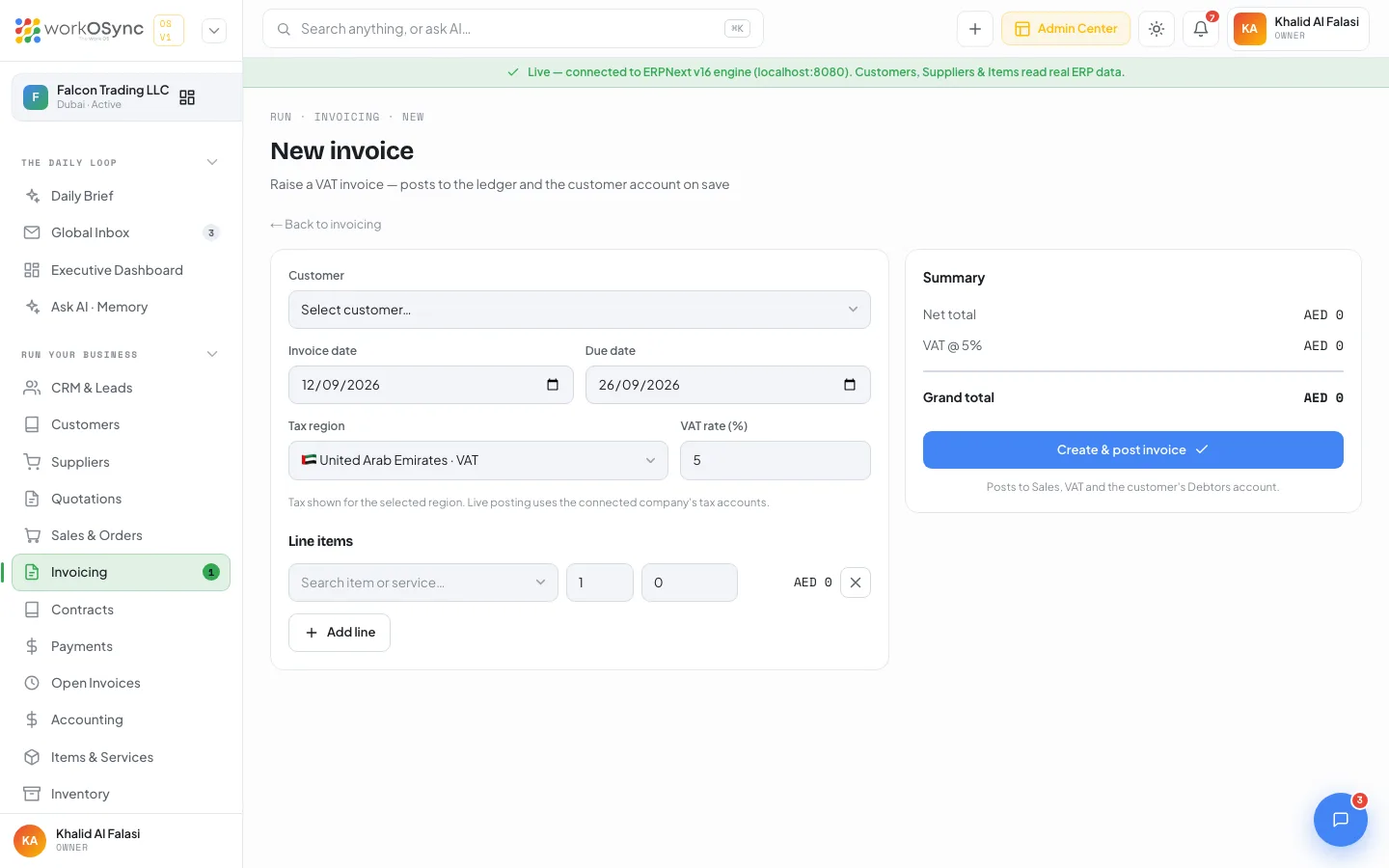
New invoice opens /invoicing/new, titled New invoice with the subtitle Raise a VAT invoice - posts to the ledger and the customer account on save.
| Field | Default and notes |
|---|---|
| Customer | From the customer master; the TRN prints from the customer record. |
| Invoice date | Defaults to today. |
| Due date | Defaults to 14 days later; drives the Overdue status. |
| Tax region and rate | UAE VAT 5% by default, or India GST, EU VAT, US Sales Tax for the preview, exactly as on the estimate builder. |
| Lines | Item picker, quantity, rate, amount; Add line appends one. |
The summary shows Net total, the tax lines and the Grand total in the region's currency format. Create & post invoice is captioned Posts to Sales, {VAT | GST | Sales Tax} and the customer's Debtors account. The invoice is submitted immediately with the company's VAT 5% tax line (whatever region is previewed) and you land on its page. Missing input returns Please choose a customer. or Add at least one line item.; in demo mode the page carries a Demo mode - connect the ERPNext engine to actually post invoices. banner.
There is no draft stage on this form. If you need to correct a posted invoice, use Mark as Cancelled from the More menu and raise a new one, or issue a Create Credit Note against it.
The tax invoice page
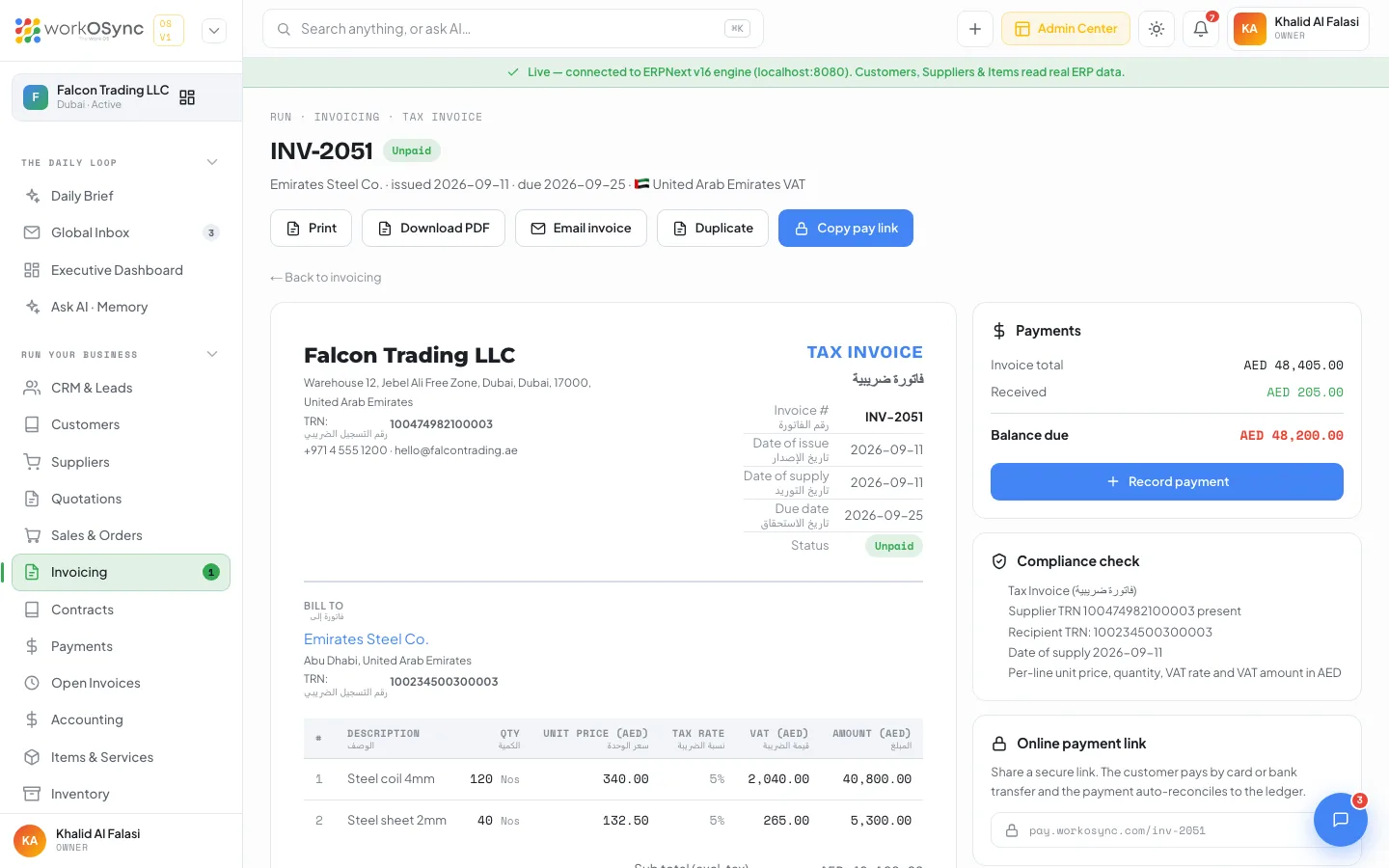
Open /invoicing/{id}. The breadcrumb reads Run · Invoicing · Tax Invoice (or Simplified Tax Invoice / Tax Credit Note), the title is the invoice number with its status and the subtitle reads {customer} · issued {date} · due {date} · 🇦🇪 United Arab Emirates VAT. A credit note shows credits {original invoice} in place of the due date.
Header actions
| Button | What it does |
|---|---|
| Print and Download PDF | Open the print dialog; choose Save as PDF for a file. |
| Email invoice | Opens your mail client with the subject Tax Invoice {id} - Falcon Trading LLC and the pay link in the body. |
| Duplicate | Creates a draft copy of the invoice dated today and opens it. |
| Copy pay link | Copies the short pay link https://pay.workosync.com/{id} and flashes Link copied. Shown while the invoice is not Paid. |
FTA tax invoice fields
The printable document is country-aware (the company's country picks the regime) and, for a UAE company, bilingual: every label carries a compact Arabic twin. It carries every element the Federal Tax Authority expects:
| Block | Fields |
|---|---|
| Title | TAX INVOICE with its Arabic title; SIMPLIFIED TAX INVOICE when the customer has no TRN and the total is under AED 10,000; TAX CREDIT NOTE for a return. |
| From | Company name (or logo), address, TRN, phone and email from your company profile. |
| Meta | Invoice # (or Credit note # and Original invoice), Date of issue, Date of supply (the delivery note date when one exists), Due date, Your reference (the customer PO number, when set), Currency with the exchange rate for a foreign-currency invoice, and Status. |
| BILL TO | Customer name (linked to the profile), the billing address (or {city}, United Arab Emirates), the customer TRN when registered, and email and phone. A simplified tax invoice shows only the name and city. A credit note labels the block CREDIT TO. |
| Lines | #, Description (with the long description underneath), Qty with the unit, Unit price ({currency}), Discount (only when a line or the document carries one), Tax rate, VAT (AED) and Amount ({currency}). |
| Totals | Sub total (excl. tax) (or Sub total, Discount and Taxable amount when discounted), VAT @ 5%, Total ({currency}), then VAT in AED and Total in AED for a foreign currency, Paid (in green) and Amount due ({currency}) (in red while outstanding). |
| Footer | Amount in words when the engine provides it; the statutory statement VAT charged at the standard rate of 5% under Federal Decree-Law No. 8 of 2017. All amounts payable are stated in AED. (or the zero-rated export wording); Payment terms: Net {days} days. Make cheques payable to {company}.; the bank line (Emirates NBD, IBAN, Swift); and Computer-generated tax invoice, valid without signature. Issued in line with UAE Federal Tax Authority requirements (Cabinet Decision No. 52 of 2017, Article 59). |
For the regulatory background see UAE compliance. A company based in India, the EU or the US gets the matching GST, EU VAT or sales-tax layout (GSTIN and HSN/SAC columns, reverse-charge wording, and so on) from the same page.
Side cards
- Payments: the invoice total, Received, an In AED @ {rate} line for a foreign-currency invoice, Balance due and a Record payment button (hidden once paid) that opens the payment form. On a credit note the card is titled Credit and shows Total credited and an Against {invoice} link.
- Compliance check: a checklist of what the document satisfies: the document type, whether the supplier TRN is present or MISSING, the recipient TRN (or not required (simplified) / not registered), the date of supply, per-line pricing and VAT in AED, and the foreign-currency note when it applies.
- Online payment link: while unpaid, Share a secure link. The customer pays by card or bank transfer and the payment auto-reconciles to the ledger. with the link shown as pay.workosync.com/{id}; once paid, This invoice is fully paid. A receipt was emailed to the customer. On a credit note it reads Credit notes are not payable. Clicking the link opens the public page.
The public pay link
Every invoice has a customer-facing page at /pay/{id} that needs no login. It is what Email invoice, Copy pay link and View as customer point to.
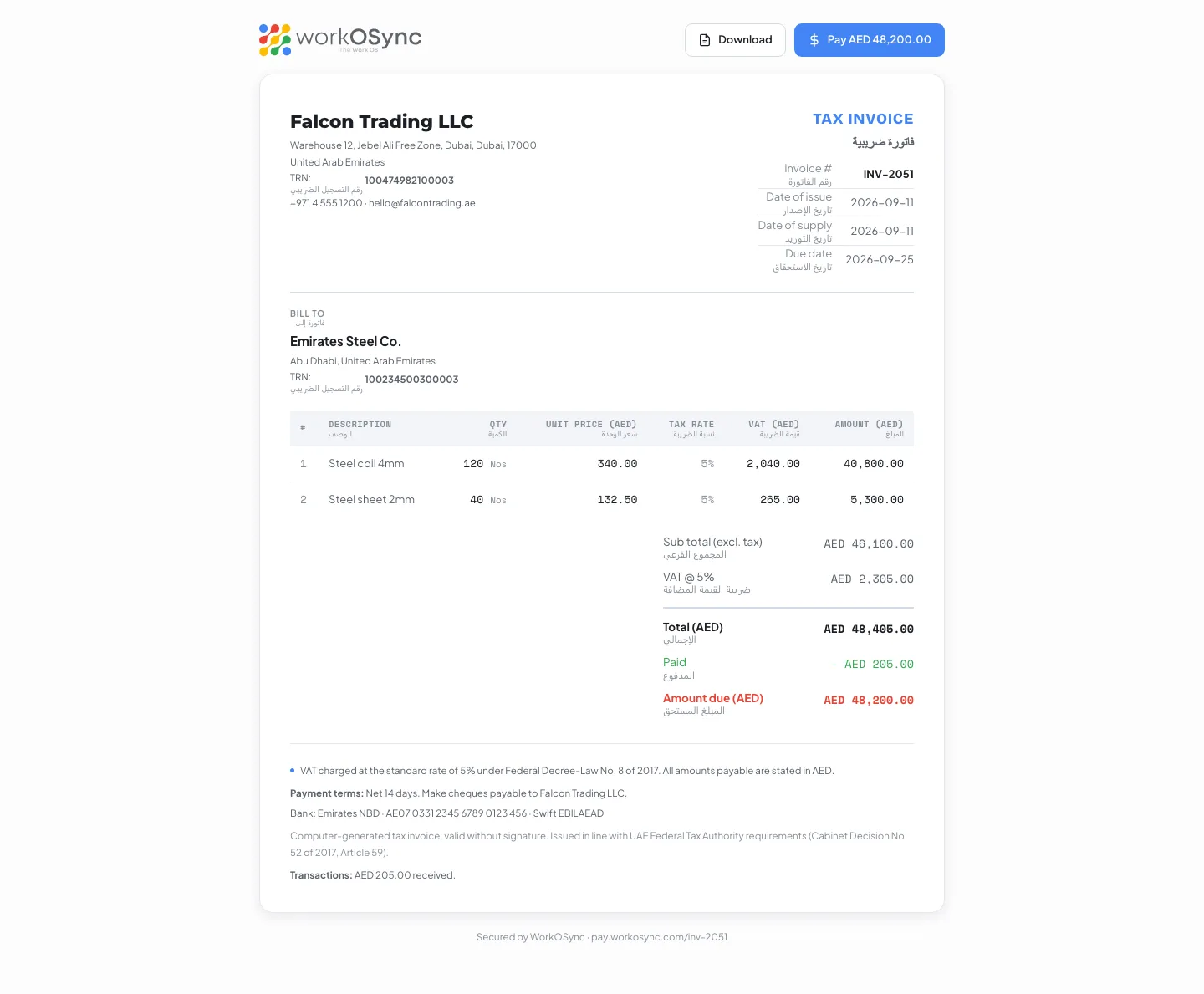
- Top bar: the WorkOSync logo, Download (print) and Pay AED {amount} while a balance remains (never on a credit note).
- Banner: OVERDUE BY {n} DAYS when late, PAID · THANK YOU once settled, or for a credit note TAX CREDIT NOTE · {Arabic} · CREDITS INVOICE {id}.
- The same bilingual tax invoice body as the in-app page: the From block, Date of issue, Date of supply and Due date, BILL TO, the lines with their Tax rate and VAT (AED) columns, Sub total (excl. tax), VAT @ 5%, Total, Paid and Amount due, then the statutory statement, payment terms and bank line.
- Transactions: AED {x} received. or No payments found for this invoice.
- Footer: Secured by WorkOSync · pay.workosync.com/{id}.
Pay AED {amount} opens a checkout modal headed Invoice {id} · {company} offering Credit / Debit card (Visa, Mastercard, Amex), Bank transfer (Emirates NBD, instant match) and Apple Pay / Google Pay, then Pay AED {amount} securely and a Payment successful screen ({amount} paid for {id}. A receipt has been emailed to you.) with a Done button.
The checkout states Demo checkout, no real charge is made. and records nothing: the invoice stays unpaid and no Payment Entry is created. Live card capture arrives with the payment-gateway integration; until then, record card and transfer receipts in Payments.
Overdue handling
An invoice becomes Overdue the day after its due date while a balance remains. Overdue amounts show on the KPI tile, the Overdue status card, the customer profile's Invoice overview and the pay page banner, and feed the AR ageing report in Accounting. For escalating reminders that chase overdue invoices by level, see Dunning.
- Filter to Overdue
Click the Overdue status card, or set the period to All to catch older invoices.
- Chase
Select the invoice and choose Send Overdue Notice from the More menu (or Send a reminder now on the Reminders tab). With the engine connected the reminder is queued to the customer's contact email; otherwise it opens in your mail client. Email invoice on the invoice page sends the pay link the same way.
- Record what arrives
Use the Payment button in the preview pane or Record payment on the invoice.
Credit notes
Create Credit Note in the preview pane's More menu creates and submits an ERPNext return Sales Invoice (is_return) against the selected invoice: every line is reversed at the original rate with the VAT 5% line, dated today. The message Credit note {id} issued against {invoice}. confirms it and the new document opens. Its page is titled TAX CREDIT NOTE (with the Arabic title), shows Credit note # and Original invoice, CREDIT TO and Total credited, prints the Article 70 credit note statement, and its side card links back to the original invoice. The customer's outstanding balance falls and the credit appears on their statement as a credit amount. The credit note also appears in the invoice list and on the customer's public page with a CREDITS INVOICE banner and no Pay button.
Recurring invoices
The Recurring tab lists subscription and retainer profiles with the columns Customer, Cycle, Amount / cycle, Started, Issued, Next invoice and Status. The page notes that Recurring profiles auto-generate a draft invoice on each cycle date and appear in your business calendar and notifications. The full subscription and retainer workspace, with cycles, auto-posting and monthly recurring revenue, is documented in Recurring invoices.
The two profiles shown today (Al Habtoor Group and Emirates Steel Co., every month, Active) are sample rows; the tab can also be opened directly at /invoicing?tab=recurring, which is where the customer profile's Subscriptions shortcut leads. Creating and editing profiles arrives with the ERPNext auto-repeat integration; the customer's contract is the place to record retainer terms in the meantime.
VAT on invoices
Every invoice shows VAT @ 5%, taken from the engine's tax total or computed as 5% of the net, and every create action posts the tax line VAT 5% - FT. The list's VAT collected tile estimates VAT as grand total × 5/105. For cash-basis reporting, the Open invoices & advances page in Payments splits the VAT between the paid and unpaid portions.